
How to Reset Your Router (Soft Reset vs Factory Reset)
Most slow or dropped Wi-Fi clears up with a quick reboot. A factory reset wipes everything and is more of a last resort. Here is when to use each one, how to do it safely, and what to check if the internet still will not come back.
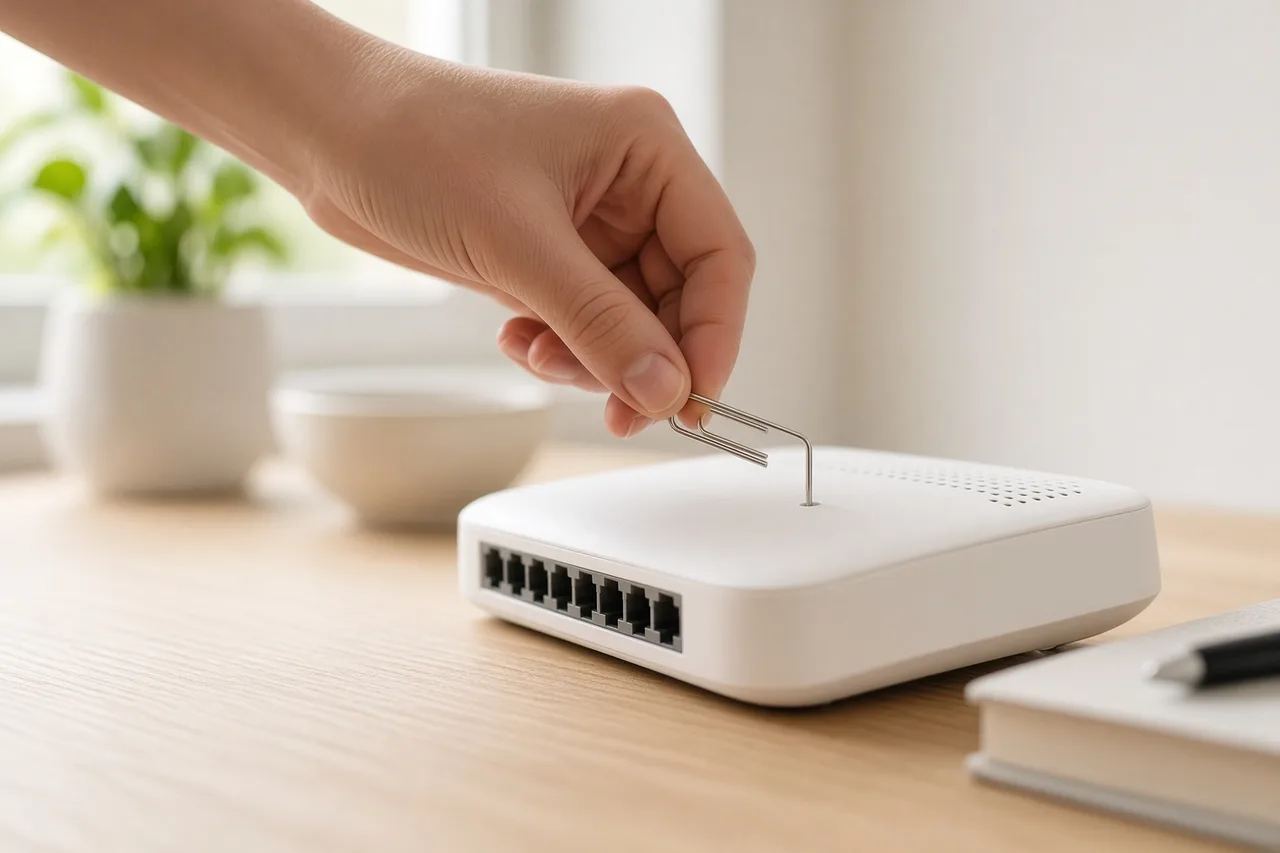
Soft reset vs hard reset
People mix these two up all the time, and they do very different things. A soft reset is just a reboot: you turn the router off and back on. It clears the temporary glitches and leaves your Wi-Fi name, password, and ISP settings exactly as they were.
A hard reset, or factory reset, is the big one. It wipes every custom setting and puts the router back to how it shipped. After that you have to set up Wi-Fi from scratch, and sometimes re-enter your ISP login too.
| Action | What it does | When to try it | What you lose |
|---|---|---|---|
| Soft reset (reboot) | Restarts the device | Slow Wi-Fi, random drops, after a power outage | Nothing |
| Hard reset (factory) | Wipes settings to defaults | Locked out by a wrong password, corrupted settings, selling or returning it | Wi-Fi name, password, port forwards, custom DNS, often ISP PPPoE logins |
Nine times out of ten you want the soft reset. Save the factory reset for when a reboot and the basic checks below have not fixed anything.
How to soft-reset (reboot) your router
- Find the power button if your router has one. No button? Just pull the power cord from the wall or the back of the unit.
- Leave it off for 30 to 60 seconds. That short gap lets the hardware fully power down and clear whatever was stuck.
- Power it back on and give it a minute or two to wake up. You are waiting for a solid "Internet" or WAN light, which means service is back.
- Test on the device that was acting up. Load a page, run a quick speed check, or reconnect to Wi-Fi if it had dropped.
If you have a separate modem and router, reboot the modem first. Wait for its online light to go steady, then do the router.
How to hard-reset (factory reset) your router
The exact steps change from brand to brand, but it almost always goes like this.
- Find the Reset button. It is usually a tiny recessed pinhole on the back or the underside.
- With the router powered on, press and hold it with a paperclip for 10 to 30 seconds. If the lights do something unexpected, check your model's manual.
- Let go when the lights flash or the unit restarts, then wait for it to finish booting.
- Reconnect using the default Wi-Fi name and password printed on the sticker, or plug into a LAN port with Ethernet.
- Open the admin page from that same sticker, something like
192.168.1.1, and set a fresh Wi-Fi name and a strong password. - If your ISP uses PPPoE or a special gateway mode, re-enter those details or run their activation steps before you expect the internet to come fully back.
Here is the part people forget: after a factory reset, none of your old devices will reconnect until you give them the new Wi-Fi password.
After a reset: a quick checklist
- If you have a separate modem, make sure its online light is on before you blame the router.
- Put the router out in the open, somewhere central. Not inside a cabinet, and not on the floor behind the TV.
- Update the firmware from the admin page when your router maker offers a stable version.
- Write the new Wi-Fi password down, and keep the admin password somewhere you will actually find it.
- Still down after a clean reboot and the right lights? Call your provider. The trouble may be on the line, not in your house.
When resetting will not help
A reset cannot fix a provider outage, a cut fiber or coax line, an unpaid bill, or a dead modem. If other homes near you on the same provider are also offline, that is your answer. Wait it out or call support before you wipe settings you will only have to set up again.
And if you are weighing up new service or tired of babying old gear, get in touch and we will check which providers reach your address.
Frequently asked questions
Will resetting my router delete my Wi-Fi password?
A reboot keeps everything. The factory reset is the one that wipes your Wi-Fi name and password, and after that you set it up again using the defaults printed on the router's sticker.
How long should I leave the router unplugged?
For a reboot, 30 to 60 seconds does the job. Plug it back in, wait for the lights to settle, then test your connection.
Do I reset the modem or the router first?
If they are two separate boxes, start with the modem. Wait for its online light to go steady, then reboot the router.
My internet is still down after a reset. What next?
Check whether it is a provider outage, make sure your account is active, and look at the modem's sync lights. If your gear is getting old or you want to compare plans at your address, call (888) 428-0573.
Keep reading
See which providers serve your address
Enter your ZIP to compare real plans near you, or talk to a person — no obligation.